

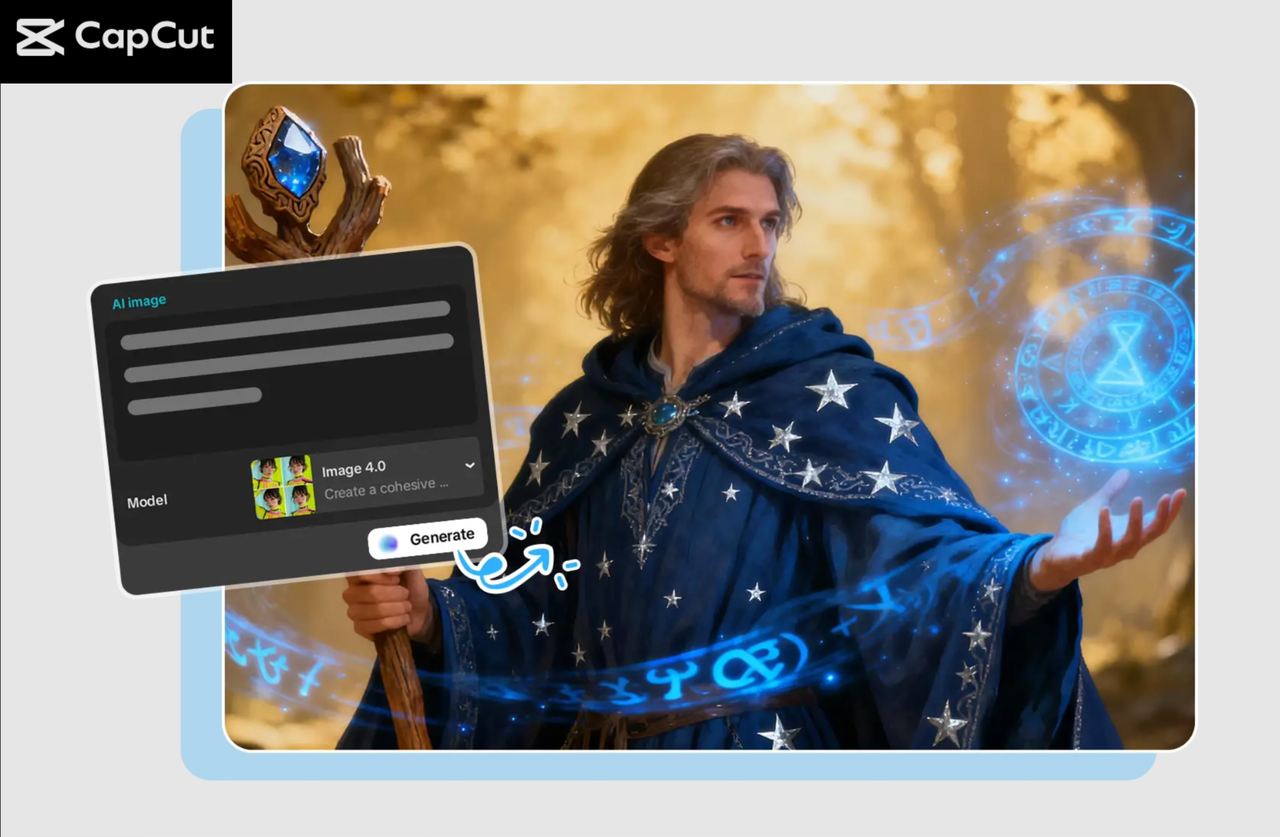
If you don’t have hours to spend on complicated design tools to create an eye-catching social media image, CapCut PC stands among the best solutions that you can use now. Its robust editing platform, along with embedded AI tools, makes it easy for beginners, content creators, and marketers to create scroll-stopping images. You can create promotional posts, Instagram carousels, thumbnails, or custom branded graphics on dedicated brand pages, and all this is possible in CapCut PC.
In this guide, we’ll walk you through a simple workflow for creating attractive social media images using CapCut on your desktop. We’ll also highlight how CapCut’s smart tools, including its AI image generator and AI logo generator, help you design high-quality visuals in just a few steps.
Why Use CapCut PC for Social Media Images?
It is crucial to learn the reasons why creators favor CapCut PC over conventional graphic design tools before getting down to the workings.
-
Beginner-Friendly Interface: No one requires any design background. All the items are well labeled and user-friendly.
-
AI-Powered Visual Enhancement: your material is always shiny with the help of text stylization, color correction, and automatic background eliminators.
-
Smart Templates: Templates for TikTok, Instagram, and YouTube save you time and allow you to work faster.
-
High-Quality Output: CapCut allows exporting or upscaling images to high resolutions like 4K or 8K.
-
End-to-End Workflow: You can design, edit, and export everything inside one tool.
Now we are going to see the full procedure of creating a design, all the way up to exporting your final designed version.
Operational Steps to Create Attractive Images
Below are the required three operational steps, rewritten clearly and naturally based on your reference content.
Step 1: Open CapCut Desktop
Download and install CapCut Desktop, then log in. After installation, open the software and click Create Project. By so doing, you will find yourself on a new editing canvas where you can start creating your social media image. It is a fully privileged work environment where you will get the AI capabilities, templates, and rich editing controls of CapCut.
Step 2: Create an AI Image
Go to Media → AI Media, and enter a brief description of the image you wish. Select a model such as Nano Banana Pro, Seedream versions, or Flux 1.1 Pro. Upload reference images if you want more accurate results. Choose your aspect ratio (such as 16:9) and press the Regenerate button to have 3 to 4 options of images. Choose one that you like and refine the image using CapCut’s editing tools.
Step 3: Export and Share
After having fine-tuned your customized social media image, you can now save the image. Click the three horizontal lines above the preview window. After clicking on the Export still options, enter your project name, choose the resolution that you want (4K and 8K are the most clear), and then export it
The picture will be stored in your device and could be uploaded to Instagram, Facebook, TikTok, Pinterest, or any other application. This export process is very simple, and your end product does not lose its visual quality in sharing.
Tips for Designing Stunning Social Media Images
To produce the images that are noticeable, one has to be creative and make the best out of the CapCut tools. Here are some helpful tips:
-
Use Consistent Branding
Your brand should be reflected in your photos on social media; the color scheme, font type, templates, and tone need to match your brand. If you require rapid branded content, the AI logo generator by CapCut can be useful to generate an original concept of logos without the help of a graphic designer.
-
Choose Bold, Readable Text
Users of social media do so at a speed. Apply bold fonts, contrast, and clean text superimposition. The CapCut offers a great array of text effects, such as shadows, outlines, neon effects, etc., to ensure that your titles stand out.
-
Make Use of Professional Templates
The templates provided by CapCut are perfect in cases where only the structure of the layout needs to be clean. They come in handy, especially where there are carousels in an Instagram feed, or in the thumbnails of YouTube videos, or announcements made.
-
Keep Your Color Palette Harmonious
Avoid mixing too many tones. Keep your palette to 2–3 colors, or apply the color grading options of CapCut to correspond to the atmosphere of your images.
-
Enhance Details with AI Features
CapCut offers tools such as automatic portrait correction, the elimination of objects and the sky, and the light. This software allows you to take a basic picture and transform it into a professional graphic image.
Benefits of Using CapCut PC for Social Media Creators
-
Saves Time
CapCut has all the features of AI-generated images and manual editing; as such, you will not need to switch between apps.
-
Gives You Total Creative Control
You can design anything: basic motivation quotes, whole promotion graphics, all without a bit of design expertise.
-
Produces High-Quality Output
The pictures exported by you are clean and crisp, even on big screens or even on high-resolution feeds.
-
Suitable for All Types of Content
You may be marketing goods, creating educational posts, inspirational content, or creating a personal brand, but CapCut PC fits all types of content styles.
Final Thoughts
There is no longer any need to have advanced design knowledge in order to create appealing images on social media. CapCut PC gives you the ability to create your visuals, refine them with the help of an AI-based feature, edit the layout, and export in breathtaking quality, all within a matter of a few minutes. With these three easy steps in this guide, you will be prepared to bring out any platform image that is engaging and provides high results.
If you want to elevate your content, CapCut PC is an excellent solution, and it is fast, powerful, and suitable for contemporary creators. Be as creative as you wish and have fun having to create beautiful things on the desktop itself.

